Create and purchase
This page of document will help you learn how to create and purchase a quickshop.
Create a selling shop
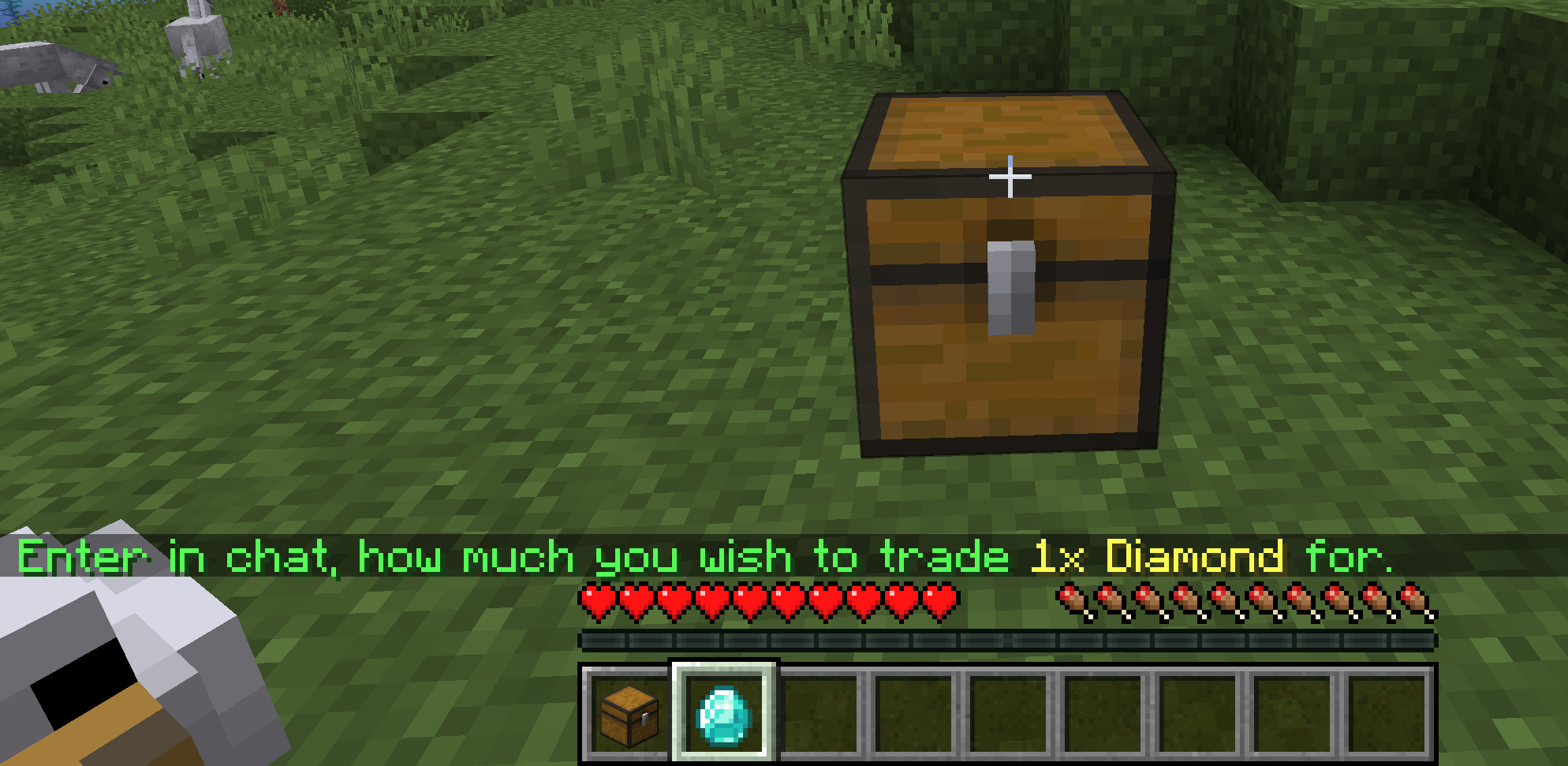
First of all, you need to put a shop container (e.g Chest), and under Survival mode, left click the container, QuickShop will ask you for the price.
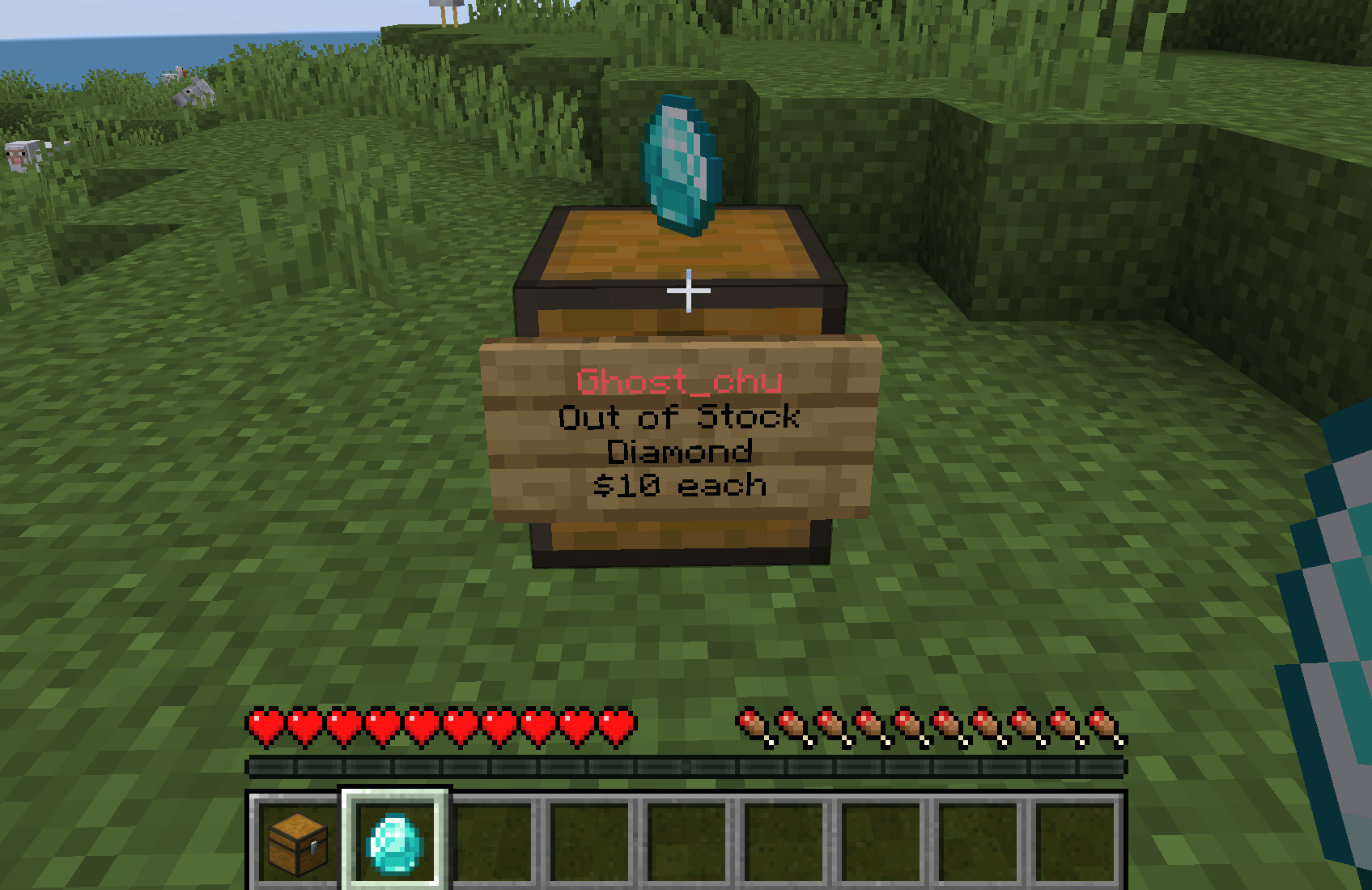
Type 10 for price in chat, you will created a shop that selling items for 10$.
| Ask for price, enter in chat | Shop Created |
|---|---|
 |  |
Once you setup a quickshop, anyone can left click your shop and purchase with it.
Fill the stock
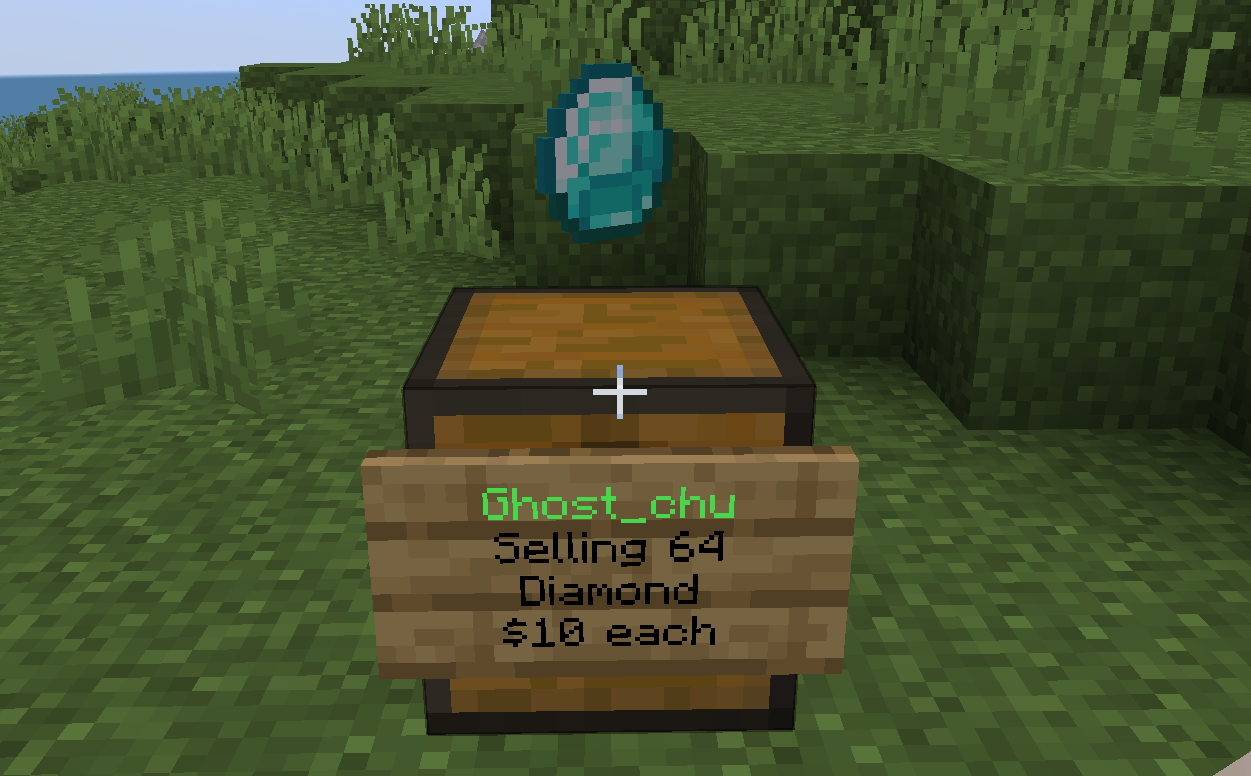
To fill your shop stock, just simple put your items into shop container, and your shop now refilled!
| Put item into container | Shop Refilled |
|---|---|
 |  |
Turn a shop to buying mode
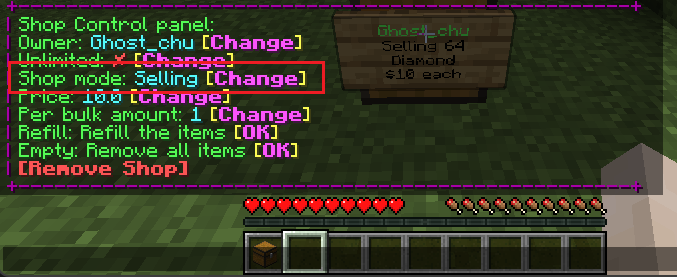
Right-click the shop info sign, a control panel will pop up at your chat.
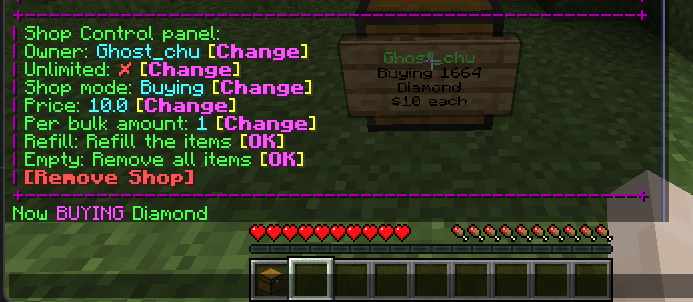
Click Shop Mode: Selling [Change] button, then your shop now is a buying shop!
Click the [Change] button | Shop Buying now |
|---|---|
 |  |
Turn a shop to freeze mode
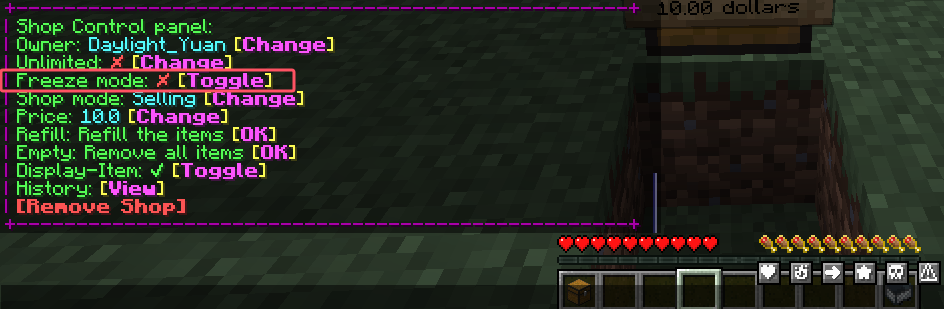
Right-click the shop info sign, a control panel will pop up at your chat.
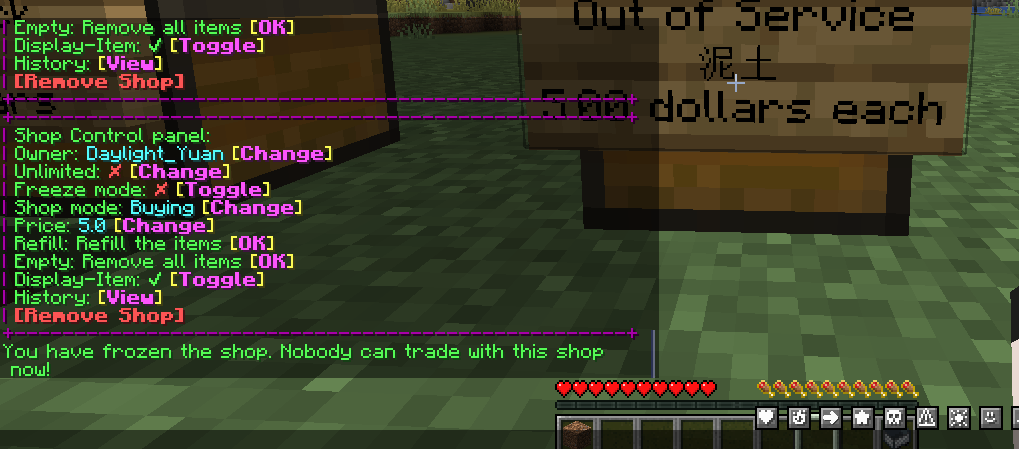
Click Freeze mode: ✘ [Toggle] button, then your shop now is a buying shop!
Click the [Toggle] button | Shop freeze mode now |
|---|---|
 |  |
Empty the space
Same as Fill the stock, just take items out of shop container, then space will released.
Name your shop
You can name your shop for identify, the name will shown instead of location in logs and transactions.
Looking at a quickshop, execute command /quickshop name <name> and you will name your quickshop.
Change the shop price
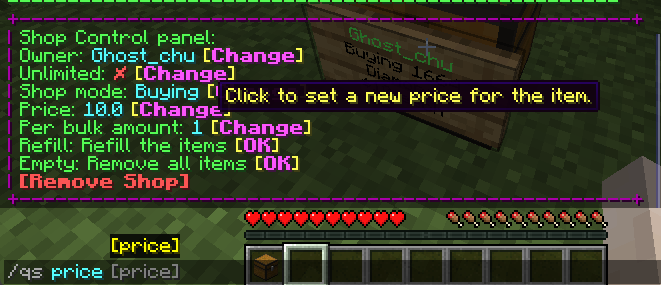
You can change your shop price after shop created by using Control Panel.
Looking at a quickshop, then click the Price: xx [Change] button, and enter new price in the chat.
Remove your shop
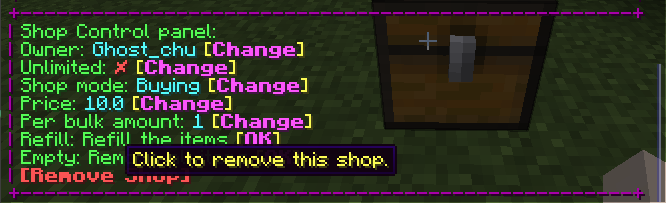
To remove your quickshop, you can simple break the shop container, or use Control Panel.
Preview the item
To help prevent scams, QuickShop lets players preview the item that a shop is actually buying or selling.
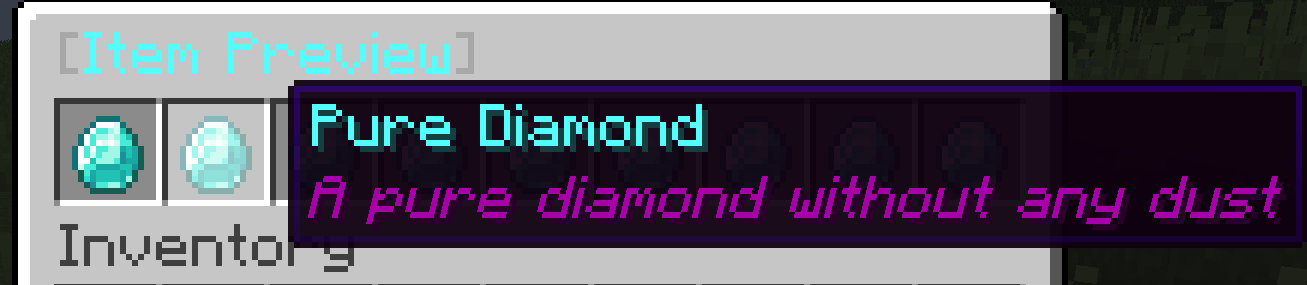
Click the shop, trade panel will pop up, hover your mouse cursor on [Preview Item], the item name and lores will shown up.
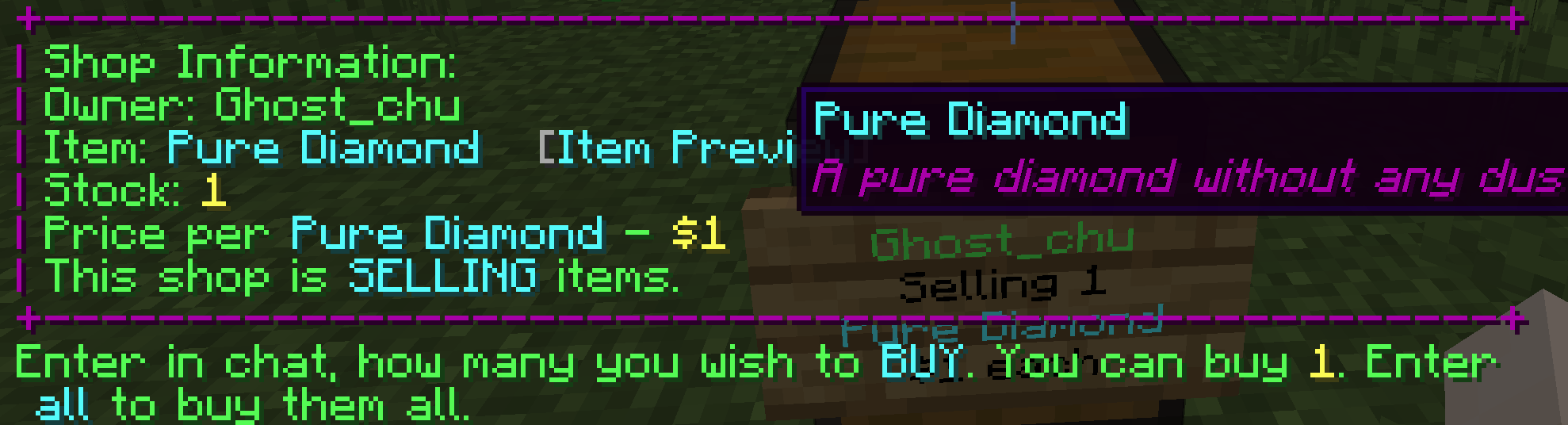
You can click [Preview Item] to open a GUI to showcase the items.